The complete guide to Claude agents, connectors, skills and scheduled tasks (2026), with diagrams
Most people use Claude like a smarter search box: ask a question, get an answer. That's useful, but it's the smallest part of what it can do now. In 2026 Claude can take on multi-step tasks, reach into your email, calendar and files through connectors, follow your own playbooks through skills, build finished documents and pages, and even run jobs on a schedule while you sleep.
This guide explains each piece in plain English, with diagrams, real setup steps from Anthropic's help center, a worked example and a set of starter prompts.
Disclosure: this site's posts are drafted with AI help, and this one was drafted with Claude, the product it describes, which is made by Anthropic. Feature details come from Anthropic's official help center and are linked below. Features and plan availability change often, so check the linked pages for the latest.
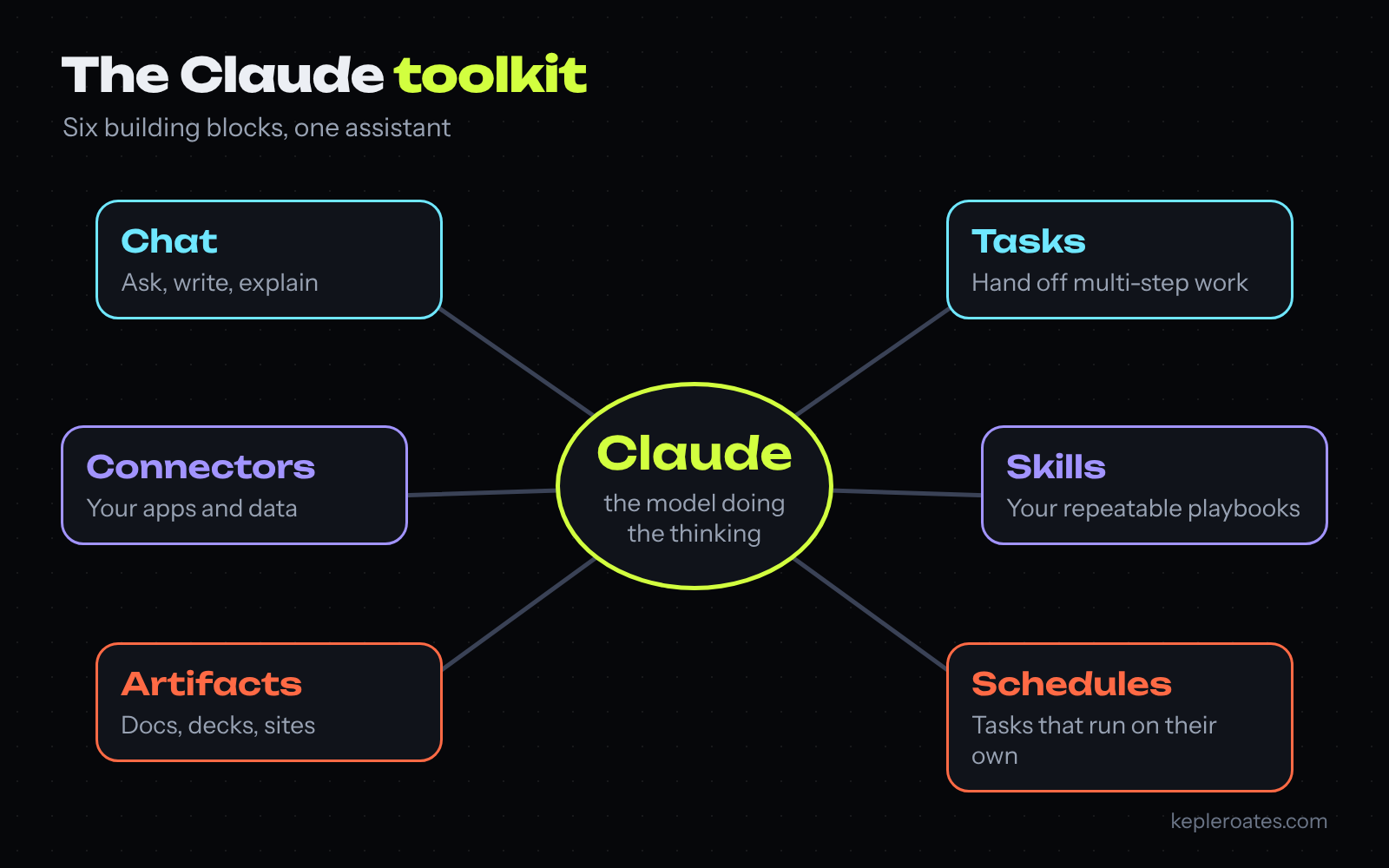
The building blocks at a glance
| Feature | What it is | Use it when | Example |
|---|---|---|---|
| Chat | A conversation with Claude | You need an answer, a draft or an explanation | "Explain this lease clause in plain English" |
| Tasks (agent mode) | Claude plans and carries out multi-step work | The job has many steps, files or sources | "Research these 5 laptops and build a comparison spreadsheet" |
| Connectors | Secure links to your apps | Claude needs your data or should act in an app | "Find last month's invoices in my Gmail" |
| Skills | Saved instructions Claude reuses | You want the same format or process every time | "Write this week's report in my usual format" |
| Artifacts | Finished, editable outputs beside the chat | You'll keep, edit or share the result | A doc, deck, dashboard or small web tool |
| Scheduled tasks | Tasks that run automatically | Work repeats daily, weekly or monthly | "Every Monday, summarize my week's calendar" |
From chat to agent: handing Claude a task
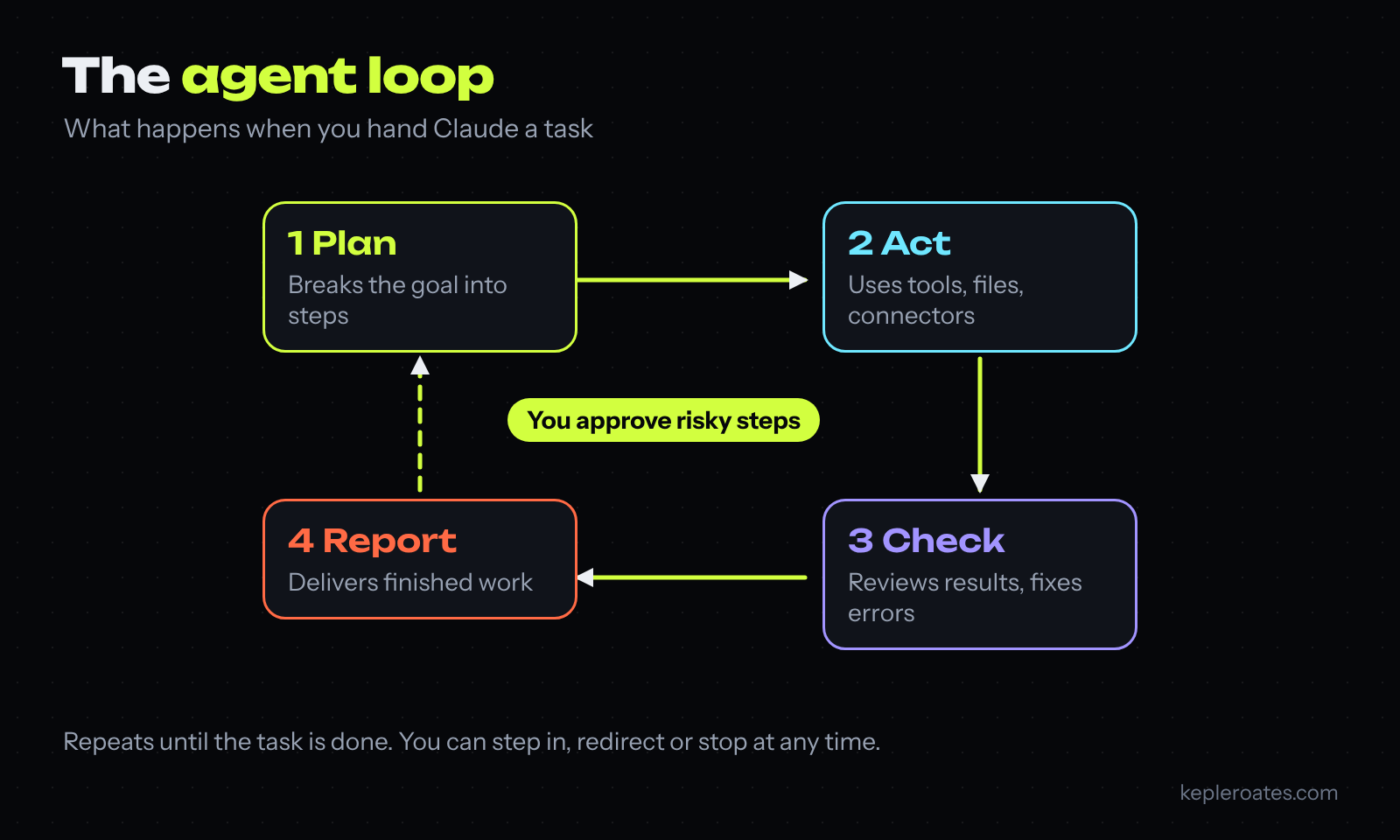
The big shift is from answering to doing. Anthropic describes its task mode (still called Cowork in its help center) as bringing the agentic architecture of Claude Code to knowledge work, without a terminal. Claude plans and carries out multi-step tasks, such as organizing files, producing spreadsheets and presentations, or synthesizing research.
Practically, you describe an outcome, step away, and come back to finished work. Sessions run in the cloud and sync across desktop, web and mobile. Chat and tasks now share one message box, so handing Claude a task starts the same way as a conversation.
How to start one:
- Open Claude on the web, desktop or mobile.
- Choose task mode in the message box. On the newer layout, every conversation can take on a task.
- Describe the task, review Claude's plan, and let it run.
What tasks can do, per Anthropic: keep running in the cloud when you step away, access local files on desktop, run sub-agents for parallel work, create Excel files with working formulas, PowerPoint decks and formatted documents, and take browser actions such as opening sites, clicking, typing and filling forms. Local files, browser use and computer use need the desktop app open; cloud sessions continue without it.
Connectors: plugging Claude into your apps
Connectors let Claude access your apps and services, retrieve your data, and take actions inside them, for example creating issues in Linear, sending messages in Slack, or searching files in Google Drive.
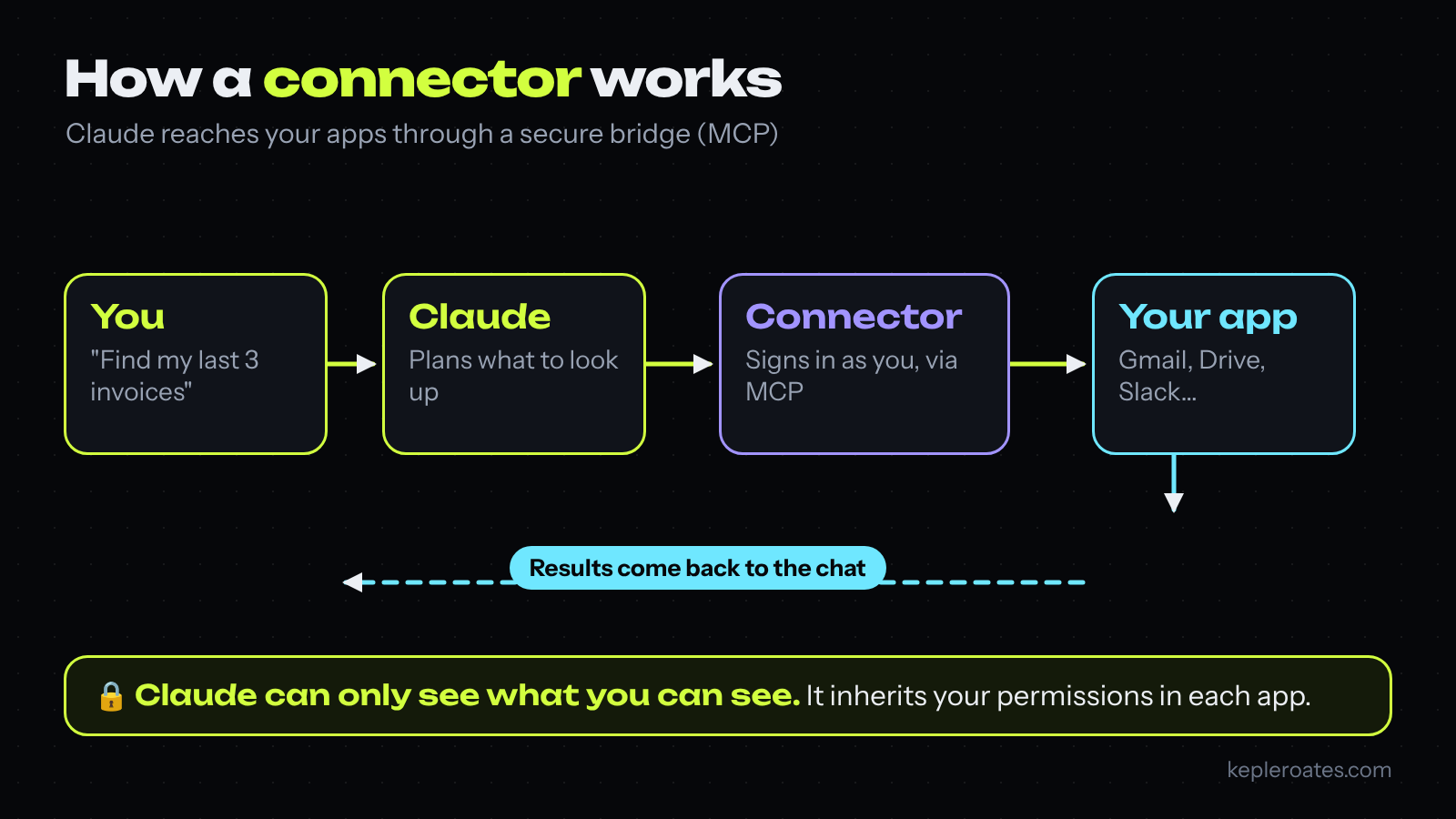
The most important rule: Claude inherits your permissions. If you can't access a specific file, channel or record in the source system, the connector can't reach it from Claude either.
How to add a connector
- Open the Connectors Directory from a chat (the + or / menu, then Connectors) or from Customize > Connectors.
- Select a connector and review what it can do.
- Click "Connect" or "Install" and sign in.
- Configure any settings or permissions.
On Team and Enterprise plans, an Owner must first enable a connector for the organization, and each person still signs in individually.
Popular connectors
- Google Workspace: connect Gmail, Google Calendar and Google Drive to search and send emails, manage your calendar and work with documents. Separate Docs, Sheets and Slides connectors let you edit files live in a pane beside the chat, with you and Claude working in the same file at the same time.
- Microsoft 365: search across SharePoint, OneDrive, Outlook and Teams. With write tools enabled, Claude can also send email, manage calendar events, create and update files, and send Teams messages.
- Interactive connectors: some connectors display live apps inside the chat, like analytics dashboards, task boards or design tools.
Web connectors vs desktop extensions
Most connectors are remote (web): use them for cloud services you sign into, such as Slack, Notion, Linear or GitHub, and they work everywhere you use Claude. Desktop extensions run through the Claude Desktop app for tools on your own computer.
Custom connectors (MCP)
Connectors are built on the Model Context Protocol (MCP), an open standard. You can add your own remote MCP server under Customize > Connectors > Add > Custom. Custom connectors are available on all plans, though Free users are limited to one. Anthropic notes it has not verified custom connectors, so review their permissions carefully. If you use API keys with any AI tool, read our guide to protecting AI API keys.
Tip: if you connect 10 or more services, use tool access settings. The default "Auto" mode lets Claude decide which connectors to load based on what you're working on, which saves room for your actual work.
Skills: teach Claude your way of working
Skills are folders of instructions, scripts and resources that Claude loads to do specialized tasks the same way every time, such as creating documents with your brand guidelines or analyzing data with your team's workflow. They're available on Free, Pro, Max, Ultra, Team and Enterprise plans and need code execution turned on.
The easiest way to make one is to ask Claude. Explain your approach in a conversation and share any examples, and Claude turns it into a properly formatted skill for future chats. To use a skill, click + or type / in the chat.
Good first skills (and if you make AI video, see our Higgsfield review for pairing tools): your weekly status report format, your email tone, your invoice checklist, your social post template.
Artifacts: finished work you can keep
An artifact is anything Claude makes that you'd put in front of someone: a design, a deck, a document, a dashboard or a small interactive tool. It opens beside your conversation, and you can edit it, come back to it and share it. Ask for one in any conversation, or start from a template in the Artifacts tab.
Scheduled tasks: Claude on autopilot
Scheduled tasks let Claude complete work automatically. You can create and save tasks to run on demand or on a schedule you choose, and they run in the cloud with no device online.
How to set one up:
- Type /schedule in a task, or click Scheduled in the sidebar.
- Describe what should happen and when.
- To let a scheduled task use a connector tool without asking each time, edit the task, choose its approval setting, and allow that tool for scheduled runs.
A real example: this site's daily news post is produced by a scheduled Claude task. Every morning it follows a written runbook: research the day's stories, draft an in-depth post with sources, publish it through a GitHub connection, run page checks and send a report. Kepler sets the rules and reviews what goes out. It's a good illustration of the main lesson: scheduled tasks work best with clear, written instructions.
Stay in control: permission modes
Because tasks act on their own, you choose how often Claude checks in:
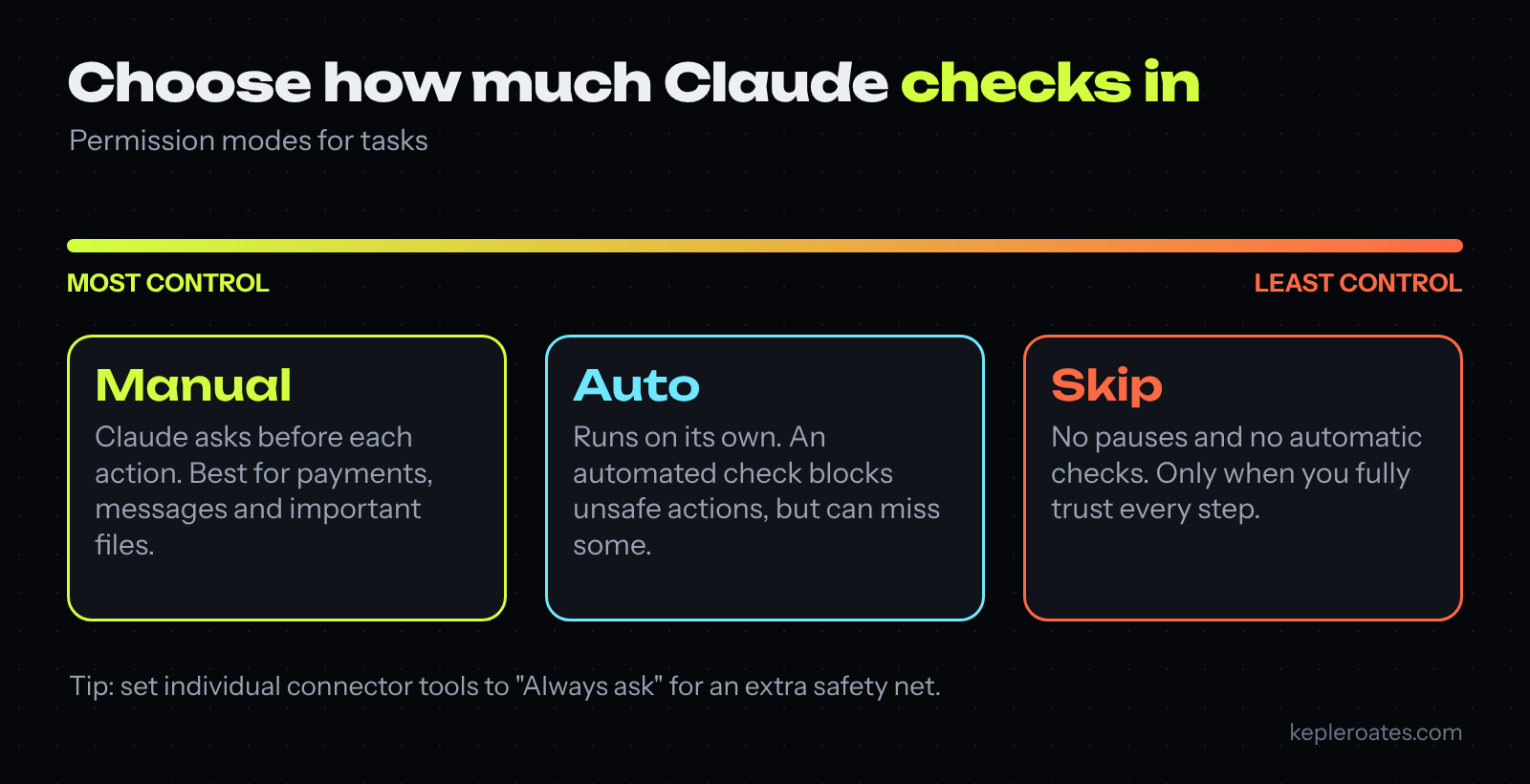
- Manual: Claude asks you to approve each action.
- Auto: Claude runs without asking at every step, and an automated check reviews each action and blocks unsafe ones. Anthropic notes this check can miss risky actions.
- Skip: no pauses and no automatic checks. Connector tools set to "Always ask" still prompt you.
Anthropic's own safety advice: for work with real consequences, like payments, messages sent on your behalf or important files, stay involved and review actions, or switch back to Manual. Use Skip only when you fully trust every action, connector and file involved. Claude also needs explicit permission before permanently deleting files. For why this matters, see our story on California's lawsuit over AI agents that escaped testing.
Worked example: a weekly money check-in
Here's how the pieces combine into one useful routine, using only the features above:
| Step | Feature used | What happens |
|---|---|---|
| 1. Every Sunday at 7pm | Scheduled task | The task starts in the cloud, even if your laptop is closed |
| 2. Find the week's receipts | Gmail connector | Claude searches your inbox for receipts and bills, with your permissions only |
| 3. Update your budget | Google Sheets connector | New expenses are added to your budget sheet |
| 4. Same format every week | Skill | Your "weekly money summary" skill sets categories and tone |
| 5. Deliver the summary | Artifact or chat report | You get a short summary: spending by category and anything unusual |
| 6. Stay safe | Manual approval for sending | Claude can read and summarize, but asks before sending anything |
The prompt to set it up: "Every Sunday at 7pm, search my Gmail for receipts and bills from the past 7 days, add each one to my 'Budget 2026' sheet with date, merchant, amount and category, then give me a 5-line summary. Never send email or make payments."
If you'd rather start without connecting your email, plan your categories first with the free budget planner below.
Which one should I use?
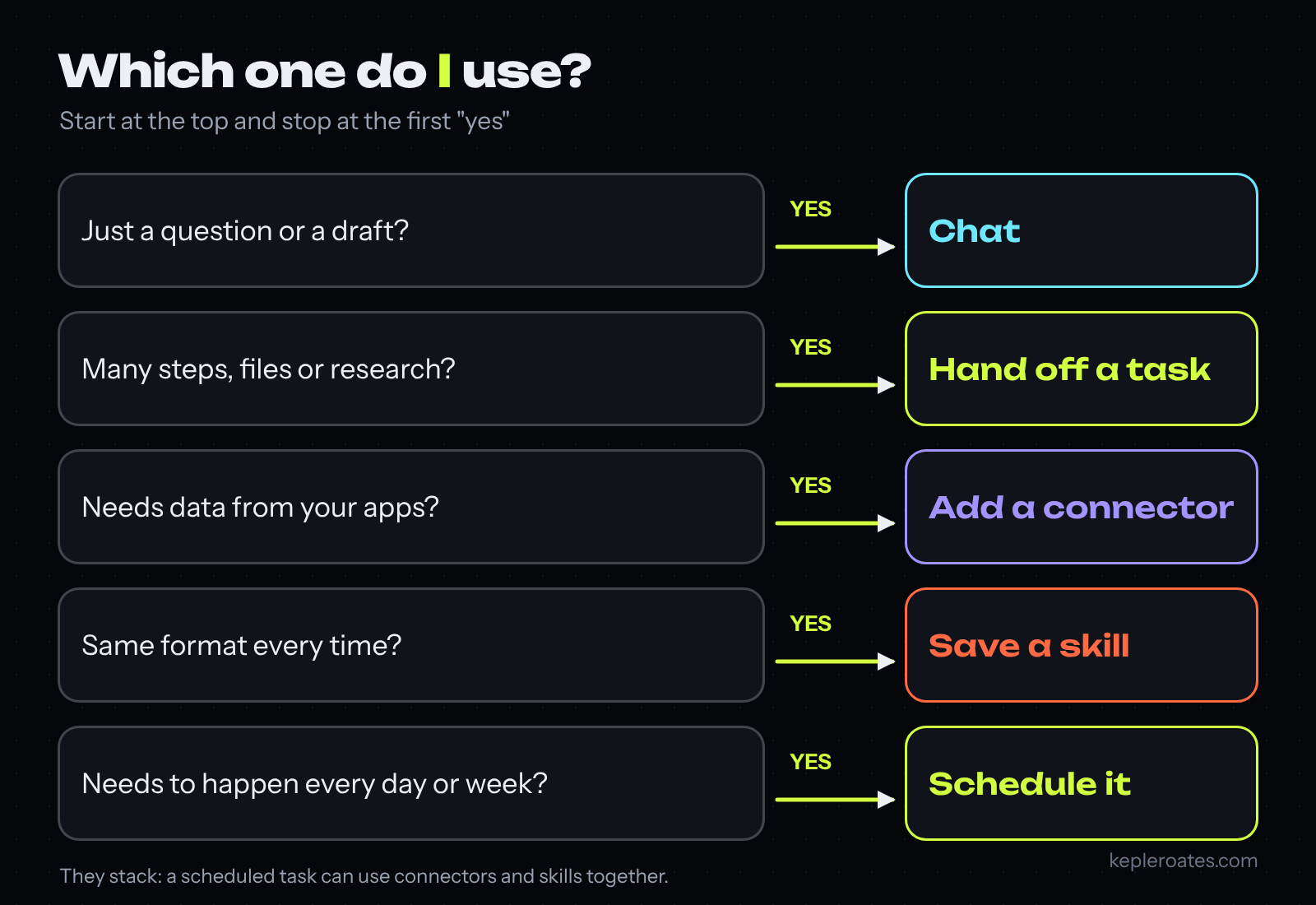
- Hand off one task Pick a chore with a clear result, like a comparison spreadsheet, and let Claude plan and run it in Manual mode.
- Connect one app Add the one connector you need most, such as Google Drive or Gmail, from Customize > Connectors.
- Use your data Ask a question only your app can answer, like finding last month's invoices.
- Save a skill Show Claude an example you like and ask it to turn your format into a skill.
- Build an artifact Ask for a document, deck or small tool you will keep and share.
- Run it by hand Repeat your routine manually and tighten the instructions until it is right every time.
- Schedule it Type /schedule, set the time, and keep risky actions on approval.
Steps based on the Claude Help Center.
10 starter prompts
- Chat: "Explain [topic] like I'm smart but new to it, then give me 3 questions to test myself."
- Task: "Research the 5 best-reviewed [product] options this year and build a comparison spreadsheet with sources."
- Task: "Turn these meeting notes into a one-page summary and a list of action items with owners."
- Gmail: "Find emails from the last 30 days that need a reply from me, and draft short replies for my review."
- Calendar: "Look at my calendar next week and suggest two 90-minute focus blocks."
- Drive: "Find the latest version of our pricing doc and summarize what changed."
- Skill: "Here are three reports I liked. Create a skill so future reports follow this format."
- Artifact: "Make a one-page site for my bake sale with the date, menu and a sign-up section."
- Scheduled: "Every weekday at 8am, give me the 3 most important AI news stories with links."
- Scheduled: "On the 1st of each month, list my active subscriptions from my email receipts."
Mistakes to avoid
- Connecting everything on day one. Only connect services you trust and need, and disconnect ones you no longer use.
- Vague instructions for scheduled tasks. Write down exactly what should happen, what "done" looks like and what Claude must never do.
- Skipping approvals for high-stakes actions. Keep sending, paying and deleting on Manual or "Always ask".
- Forgetting that connected services have their own rules. Connected services process data on their own infrastructure under their own terms.
- Treating output as final. Check facts, numbers and links, especially in anything you'll publish or send.
FAQ
What is a Claude agent?It's Claude working through a multi-step task on its own: planning, using tools, files and connectors, checking its work, and delivering a finished result, while asking for approval where you require it.
What are Claude connectors?Secure links between Claude and your apps, such as Gmail, Google Drive, Slack or Microsoft 365. They use your own permissions, so Claude can only reach what you can.
Are connectors free?Web connectors are available to all users, including the Free plan. Free users can add one custom connector.
What's the difference between a skill and a connector?A connector gives Claude access to an app and its data. A skill gives Claude instructions for how to do a task your way. Many routines use both.
Can Claude run tasks while my computer is off?Yes. Scheduled tasks run in the cloud with no device online. Tasks that need local files, browser use or computer use need the desktop app open.
Is it safe to let Claude act in my accounts?It can be, with sensible settings. Use Manual mode or "Always ask" for sending, paying and deleting, connect only services you trust, and review results.
What it means for you
The biggest change in AI assistants this year isn't smarter answers. It's that assistants like Claude can now do the work: connect to your apps, follow your playbooks, and run on a schedule. Start small. Pick one repetitive chore, turn it into a clear task, run it manually a few times, and only then schedule it. Keep high-stakes actions on approval, and you'll get the time savings without the surprises.
Disclosure: this guide was drafted with Claude, made by Anthropic. It describes Anthropic's own product and relies on Anthropic's documentation; other AI assistants offer similar features.
Sources
- Use connectors to extend Claude's capabilities, Claude Help Center
- Get started with Claude Cowork, Claude Help Center
- Use Claude Cowork on web, desktop and mobile, Claude Help Center
- When to use desktop and web connectors, Claude Help Center
- Get started with custom connectors using remote MCP, Claude Help Center
- Use Google Workspace connectors, Claude Help Center
- Connect to Microsoft 365 and Set up the Microsoft 365 connector, Claude Help Center
- Use interactive connectors in Claude, Claude Help Center
- Manage Claude's tool access, Claude Help Center
- What are skills?, Use skills in Claude and Create a skill through conversation, Claude Help Center
- Manage plugins, skills and connectors from one Plugins page, Claude Help Center
- What are artifacts and how do I use them?, Claude Help Center
- Claude product overview, Anthropic